

The fatal: not a git repository (or any of the parent directories): .git error means Git cannot find a .git directory in your current folder or any parent folder. In most cases, you are either in the wrong directory, the project was never initialized with Git, or the .git folder is missing or corrupted.
A Git repository is a collection of files and information regarding past changes made in them. Most of the Git commands must be executed against a Git repository. For example, if you run git push -u origin master outside of a git repository, Git will simply not know what to push and where to push. The error above, fatal: not a git repository (or any of the parent directories): .git, states that you tried to execute a repository-specific command, outside of the Git repository.

Here are some reasons why this error might occur:
- You are in the wrong working directory
- You mistyped the path to the repo
- You didn’t initialize the Git repository
- Your HEAD file is corrupted
Here are quick steps you can try to fix this error:
- Make sure you’ve navigated to the right directory (check with
lsordir) - Check if you mistyped the path to the repo
- Initialize your repository with
git initor by cloning an existing repo
See more details below on the reasons for the fatal: not a git repository error, how to fix it, and our suggestions for preventing this annoying error in the first place.
| Situation | What to check | Fix |
|---|---|---|
| You are in the wrong folder | Run pwd or cd | Navigate to the project root |
| Repo was never initialized | Check for .git | Run git init |
| You meant to use an existing repo | Check remote/source | Run git clone <repo-url> |
.git folder is missing | Run ls -la .git | Restore from backup or re-clone |
.git/HEAD is corrupted | Run cat .git/HEAD | Repair carefully or re-clone |
This is part of a series of articles about Git Errors.
Why does the “fatal: not a git repository” error occur?
The fatal: not a git repository error makes it clear that you’re not in a git repository. There can be a few reasons why the error occurs:
- You are in the wrong working directory: You tried to run the command but did not navigate to the project folder where the git repository (git folder) is located.
- You mistyped the path to the repo: Double check your git command and make sure you typed the correct path.
- You didn’t initialize the Git repository: You are in the project directory, but you didn’t initialize the Git repository for that project folder.
- Your HEAD file is corrupted: You can run the command
cat .git/HEADand see that the HEAD branch is working properly and includes the branch you are working on.
To fix “fatal: not a git repository”, try these steps
Do not delete the .git directory unless you have a backup or a remote repository you can safely re-clone from.
The .git folder contains the repository history, branches, refs, configuration, and other metadata Git needs to understand the project. If you remove it without a recovery plan, Git may no longer recognize the folder as a repository, and you could lose access to local commits, branches, or configuration that were not pushed elsewhere.
Make sure you have navigated to the right directory
To solve the first two situations, in which you are in the wrong directory or mistyped the path to the repo, check the folder in which you are currently trying to run the command. You can check the current folder with ls in Linux or dir in Windows. Also make sure you have not mistyped the path to the repo.
Is that the correct folder? If not then simply use the cd command to navigate to the correct path.
| Command | What it tells you | What to do next |
|---|---|---|
pwd | Shows current directory | Confirm you are inside the project folder |
ls -la | Shows hidden files, including .git | If .git is missing, initialize or re-clone |
git status | Confirms whether Git recognizes the working tree | If it fails, check directory or repo setup |
git rev-parse --show-toplevel | Shows the repo root if one exists | cd into that folder |
git rev-parse --is-inside-work-tree | Confirms whether you are inside a working tree | If false/error, you are outside a usable repo |
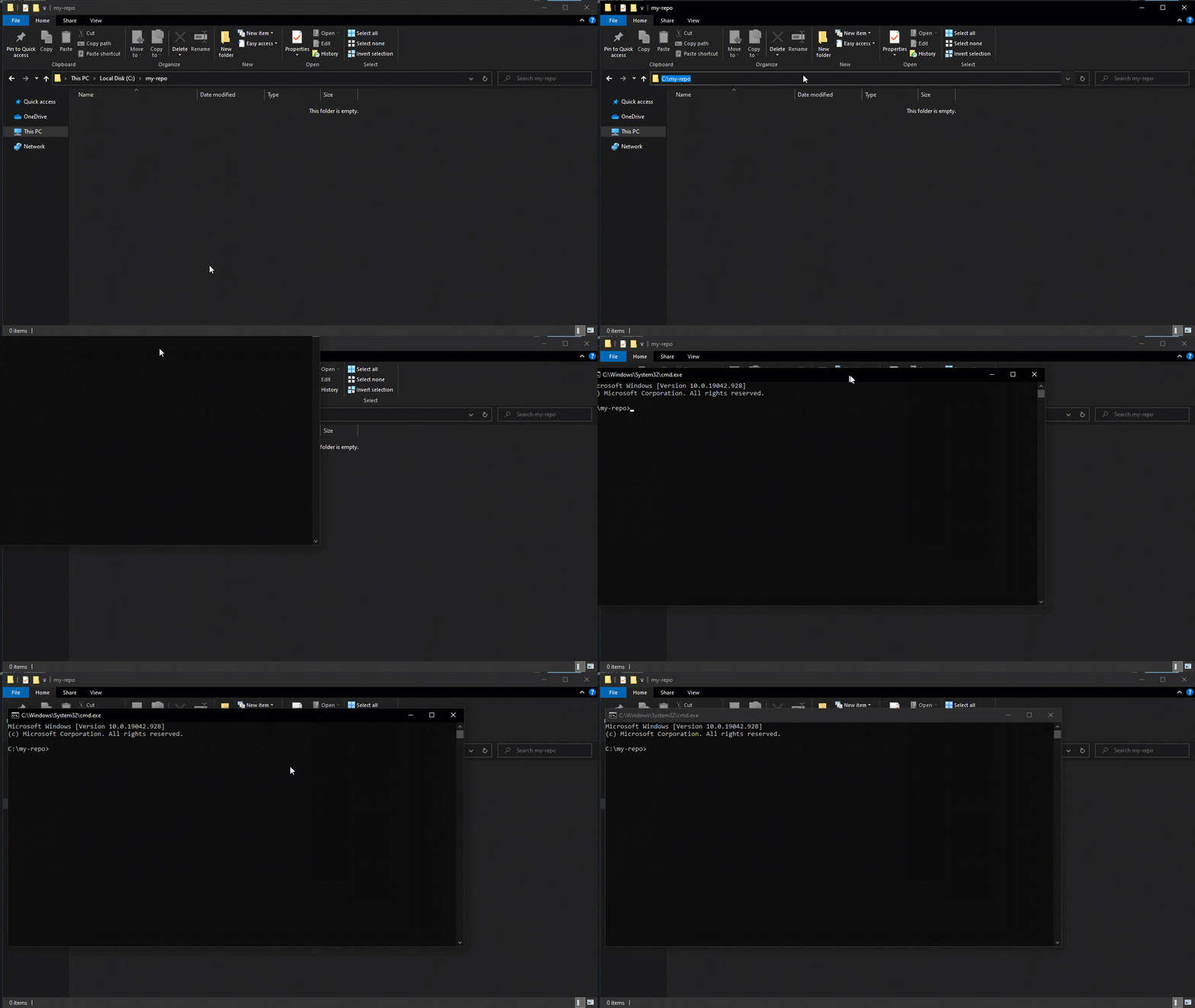
There is a simple trick that you can use in Windows to be sure that you always open a command prompt in the correct folder. Navigate to the project directory using the file explorer and then type in the search bar, cmd. This will open a command prompt to the current folder path.
Initialize your repository
If the problem is that you didn’t initialize your git repository, here is how to do that: You need to navigate to the correct folder and then run the command git init, which will create a new empty Git repository or reinitialize an existing one.
Alternatively, clone an existing repo into your project folder.
Why You May See This Error Even When the Project Looks Correct
Sometimes the fatal: not a git repository error appears even when you are sure the project has already been cloned, initialized, or used before. In these cases, the problem is usually not that Git is missing completely. Instead, Git may be running from the wrong context, inside a copied folder, inside a container, or in a special repository setup where the .git data is not where you expect it to be.
Use the scenarios below to narrow down the cause.
CI/CD pipelines running in the wrong working directory
In CI/CD environments, this error often happens when a build or deployment step runs from the wrong directory. For example, a GitHub Actions, GitLab CI, Jenkins, or CircleCI job may check out the repository correctly, but a later script may run from a nested folder, temporary directory, or deployment path that is not inside the Git working tree.
Preventing “fatal: not a git repository”
When you run a Git command, the first step Git will take is to determine the repository you are in. To do this, it will go up in the file system path until it finds a folder called .git. Basically, the repository starts with the directory that has a .git folder as a direct child.
To prevent the fatal:not a git repository error, you need to make sure that you are in a Git repository before running any commands. One way you can do this is to check for the existence of the .git folder.
That period in front of the .git folder means that it’s a hidden folder. Therefore, it will not appear in the file explorer unless you have explicitly set it to show hidden folders.
On Windows, you can do this from the iew tab.

On macOS or Linux, run ls -la to list all files, including hidden files like .git.
Another quick solution that you can use to check that you are inside a Git repository is to run the git status command. This command will show the current state of the repository if the current folder is part of a Git repository.
How do Git repositories work?
Git errors can be confusing, especially if you’re a beginner. This confusion mainly occurs because users are taught to create a connection between problem and solution, where someone encounters a problem and then looks for and uses a solution generally valid without trying to understand too much about the cause of the problem
This simple problem-solution connection is enough for most issues on Git: clone a repository, write some code, commit the changes and push the commits; or clone a repository, create a new branch, write some code, merge the branches and solve the conflicts. However, learning how Git works and its basic concepts will help you understand the technology you are working with and even do much more than those simple use cases described above.
Here’s some basic information to help you better understand how Git repositories work.
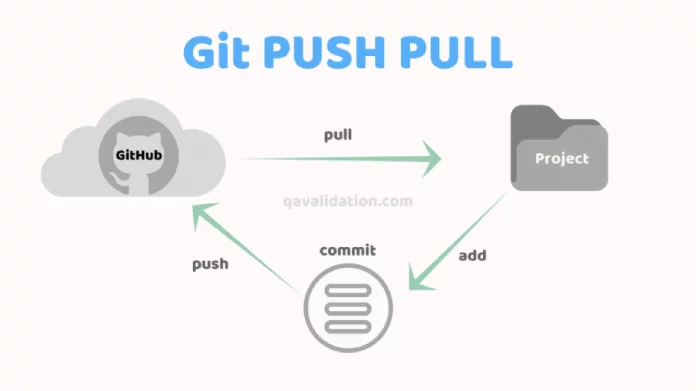
First and foremost, Git is a Distributed Version Control System (DVCS). With Git, we have a remote repository stored on a third-party server and a local repository stored in our local computer. Therefore, one can find the code in more than one place. Instead of having just one copy on a central server, we have a copy on each developer’s computer.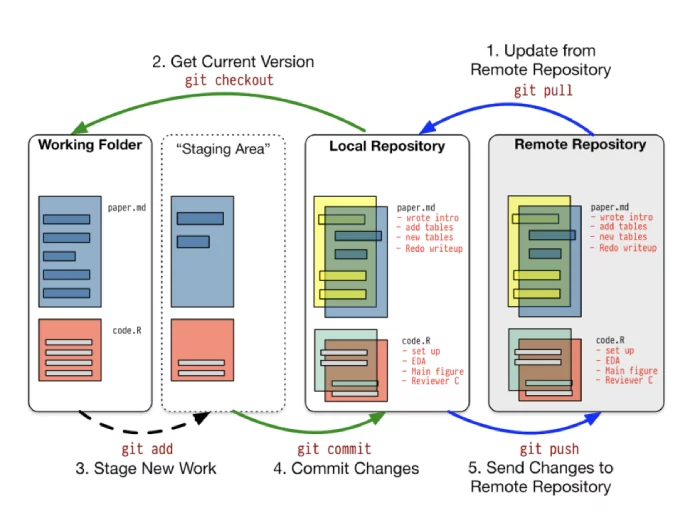
Source: Working with Git
Git, like any other software, must first be downloaded and installed in order to be used. You can even run the git --version command to see what your current version of Git is.
The first step to using a repository is to either clone one if you have access to it or to initialize one.
git clone <repo_path> and git init
These commands will create a new folder named .git, which will contain all the information about your repository that Git tracks: commits, branches, history, and so on.
The workflow of contributing to a Git repository is the following:
1. Stage the files
The first step is to add the files you want to add to a repository in the staging area. The purpose of this staging area is to keep track of all the files that are to be committed.
You can stage files using the git add <file_name> command or git add . to stage all the files.
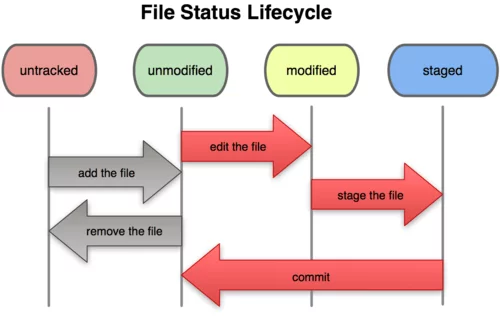
Source: What are the differences between git file states
2. Commit the changes
The second step is to commit the changes. In this step, all the files that were added to the staged zone will be added to the local repository. The command for this is git commit -m "<your_message_here>". The message should be something relevant about the changes you have added.
3. Push the code
The last step is to push your changes from your local repository to the remote repository with the help of the git push command.
What are some common Git errors?
Fatal: not a git repository (or any of the parent directories): .git is just one of many other errors that can occur when working with Git. Here is a list of other common errors that may occur along with a brief explanation.
1. Permission denied
Permission denied when accessing 'url-path' as user 'username'
Git repositories can be of two types: public or private. In a public Git repository, everyone can view the code and clone it on their local machines. For the private ones, you need to be authenticated on the platform that the repository is hosted on in order to clone it onto your computer. At the same time, you need to have explicit rights to it.
This error means your username and password, SSH key, or access token may be valid, but your account does not have the required permissions for that repository. To fix it, ask the repository owner or administrator to grant the correct role, such as developer, maintainer, or admin, depending on the platform and the action you need to perform.
2. Failed to Push Some Refs
Source: What are the differences between git file states
The purpose of Git is to collaborate and share work within a project while all the participants contribute to the same code base. One common scenario is when someone else pushes some code to the same branch you are working on, and you are trying to make your changes as well. The above error indicates that there is one more commit that was pushed to the same branch, but you don’t have that commit on your local machine.
To fix this, you can easily run a git pull origin <your-branch>, solve the conflicts if any, and then run git push origin <your-branch> to push your changes as well.
Learn more in our detailed guide to failed to push some refs to.
3. fatal: A branch named <branch-name> already exists
Most VCS (version control systems) have some form of support for branching mechanisms, including Git. Branches can be created directly in the remote repository, or they can be created locally and then pushed to the remote repository.
To create a new branch locally, you can run either:
git branch <new-branch or git branch <new-branch> <base-branch>
The first one, git branch <new-branch>, is used to create a new branch based on the currently checked out (HEAD) branch, meaning that if you are on a branch master and run git branch dev, it will create a new branch named dev from the branch master.
The second one is used when you want to create a new branch from a different branch, then the one that you are currently checked out. git branch qa master will create a new branch named ‘qa‘ from the master branch.
The branch names must be unique, therefore the error above, fatal: A branch named <branch-name> already exists., states that you already have a branch in your local repository with the same name.
4. Can’t switch between branches
Imagine this scenario: you have two branches, master and dev, both with committed files to the repository. On your local system, you do some changes in a file from the dev branch. At this point, if you want to move back to master and you run the command git checkout master, you will receive the following error:
error: Your local changes to the following files would be overwritten by checkout
This error means that you have some files that have been edited but not committed, and by checking out another branch, you’ll overwrite and lose these edits. The solution is to either commit these changes or if you don’t want to commit them yet, to stash them.
What causes Git errors?
Git errors are like any other CLI software errors. Most of the time, they represent a misuse of the command, wrong command names, missing parameters, wrong scope, etc.
There may also be cases where the error is not a user error but a software error. In those situations, either the application encountered a bug or the integrity of the application is corrupted. This can usually originate from missing data or the unintentional deletion of the required files.
In the former case, you can report the bug, and once it is fixed, the Git application can be updated. For the latter, the easiest solution is to remove the software and install it again.
Related content: Read our guide to git revert.
Conclusion
Git is one of those applications you can use without ever thoroughly learning it because most of the time, the way you use it is straightforward as you limit yourself to the same commands over and over again. But if you never take the time to understand how it works and the philosophy behind it entirely, the confusion will never go away, and you can reach a stalemate if you have to do a few more complex operations. In this article, we covered the "fatal:not a git repository" error and everything to do with it, and then explored a few more Git errors.
FAQs About fatal: Not a git repository
The fatal: not a git repository error means Git cannot find a valid .git directory in your current folder or any parent folder. The .git directory is what tells Git that a folder is part of a repository. It stores the project’s history, branches, refs, configuration, and other metadata Git needs to track changes.
In most cases, this error happens because you are running a Git command from the wrong directory, the project was never initialized as a Git repository, or the .git folder is missing, moved, or damaged.
Start by checking whether you are in the correct project folder. Run pwd on macOS or Linux, or cd on Windows, to confirm your current location. Then check whether the folder contains a .git directory by running ls -la on macOS or Linux, or dir /a on Windows.
If you are in the wrong folder, navigate to the project root and run your Git command again. If the folder was never initialized as a Git repository, you can run git init. If the project already exists in a remote repository, it is usually safer to clone it again with git clone instead of manually rebuilding the .git directory.
You should run git init only if the current folder should become a new Git repository. It is not always the right fix for this error.
If the project already had Git history, branches, remotes, or local commits, running git init will not restore that missing history. It only creates a new Git repository in the current folder. If the project exists on GitHub, GitLab, Bitbucket, or another remote repository, re-cloning the project is usually the safer option.
If .git exists but Git still says the folder is not a repository, the Git metadata may be broken, incomplete, or pointing to a location that no longer exists. This can happen if the project folder was moved manually, copied incorrectly, or used as a Git worktree or submodule.
Also, .git is not always a folder. In Git worktrees and submodules, .git can be a file that points to the real Git directory somewhere else. Before deleting or changing it, check whether .git is a file or directory and confirm where it points.